Pyx Forum Powered by Discourse
The Pyx Forum is the community's home for durable, long-form discussion — the place where ideas get room to breathe, decisions get written down, and the conversation is still there months later when someone needs it. It's powered by Discourse, the open-source forum platform, and it's the system of record for community threads: if it matters and it should last, it belongs here.
The Forum is the slow, structured counterpart to Chat. Chat is for the fast-moving, in-the-moment back-and-forth; the Forum is for the considered question, the proposal, the write-up, the thing worth finding again.
The Forum lives at forum.community.pyx.io. Sign in with your Pyx account — the same single sign-on you use for the Dashboard and Chat. Anyone can read the Forum without signing in; sign in when you want to post, reply, or follow along.
💡 One quick bit of vocabulary: on the Pyx Forum, a discussion is called a thread (not a "topic"). You'll see New Thread, Suggested Threads, and so on. Categories keep their name. (We use "thread" so it doesn't clash with Topics on the Dashboard, which mean something different there.)
🆚 Forum or Chat — which do I use?
Both are part of the same community and share your one Pyx login. The difference is pace and permanence:
| Use the Forum when… | Use Chat when… |
|---|---|
| You're asking a question others will search for later | You need a quick answer right now |
| You're proposing, announcing, or writing something up | You're brainstorming in real time |
| The discussion should be easy to find weeks from now | It's in-the-moment and ephemeral |
| You want a structured, on-the-record thread | You want a fast, casual back-and-forth |
Rule of thumb: if you'd be sad to lose it, put it in the Forum. New to Chat? See the Pyx Chat guide.
✅ Quick Start
| Action | What to know |
|---|---|
| Sign in | forum.community.pyx.io with your Pyx account (Pyx Community SSO) |
| Browse | Open Categories to see discussion areas; open a category to see its threads |
| Read | Click any thread to read it — no sign-in needed to read |
| Start a thread | + New Thread, pick a category, write a title and your post |
| Reply | Reply at the bottom of a thread, or reply to a specific post |
| Follow a thread or category | Set its notification level (🔔 Watching / Tracking / Normal / Muted) |
| Direct messages | Message another member 1:1; your forum DMs also appear in your Dashboard inbox |
| Mobile | Works in any mobile browser; optionally add it to your home screen or use the Discourse app |
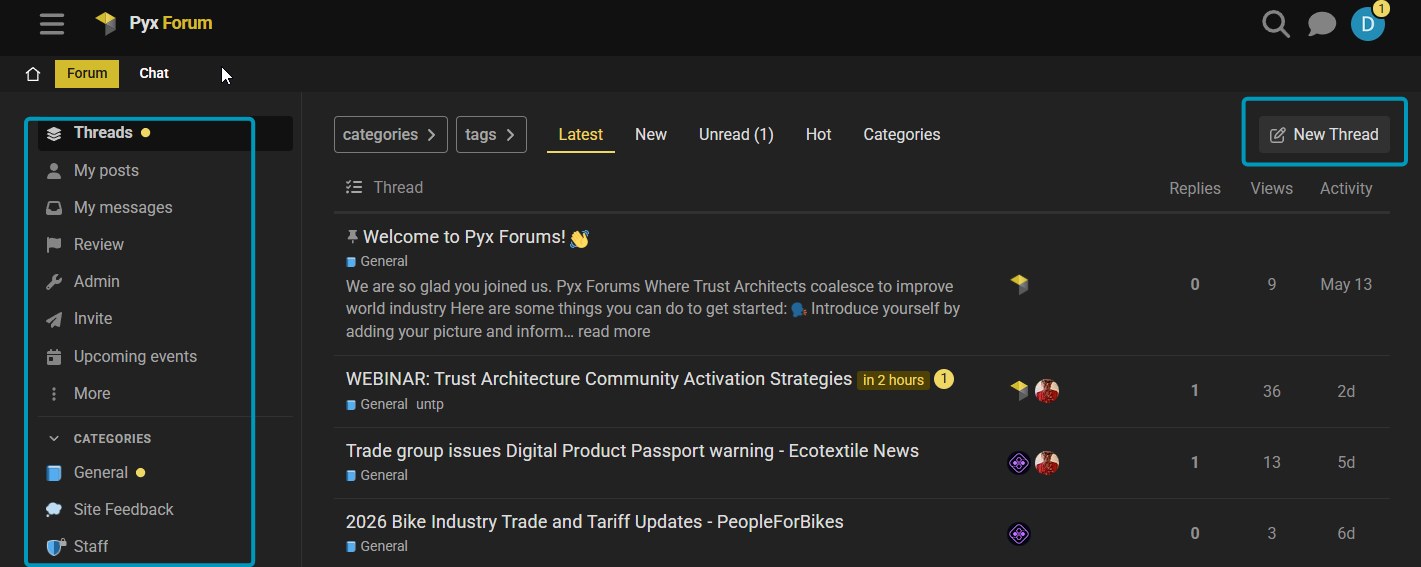
🔑 Step 1: Sign in with your Pyx account
The Pyx Forum uses Pyx Community single sign-on (SSO) — the same Pyx account you use for the Pyx Community Dashboard and Chat. One account, one login, everywhere. There's no separate forum username or password to create.
- Visit forum.community.pyx.io.
- Click Log In (top-right). The Forum takes you straight to the Pyx sign-in screen — there's no separate forum login or extra button to choose.
- Sign in with your Pyx account — pick your account (or enter your email and password, or continue with Google/GitHub if that's how you set up your Pyx account).
- You'll be returned to the Pyx Forum, signed in. 🎉
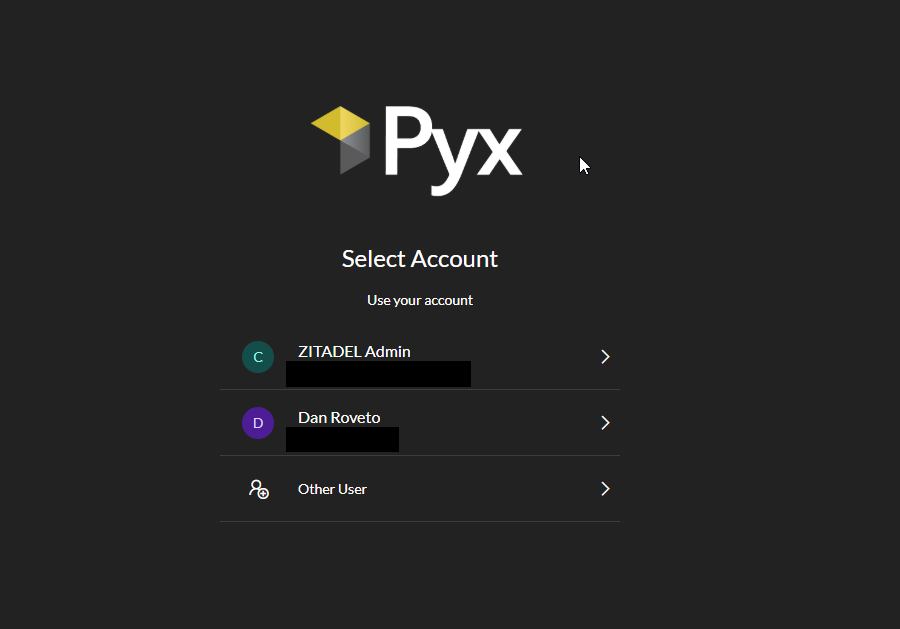
Sign in using the same email address your forum account already uses — your existing threads, posts, and history come with you automatically; your old and new accounts are merged into one. (A different email creates a separate, empty account — see the note below.) ✅
No Pyx account yet? Create one via the Pyx Community Dashboard, then sign in here with your Pyx account. Your Pyx Forum account is created automatically the first time you sign in — there's no separate forum sign-up.
The Forum recognizes you by your email address. If you sign in with a Pyx account whose email differs from your original forum account, you'll land in a new, empty account. If that happens, email site@pyx.io and we'll reconnect you to your history.
🧭 Step 2: How the Forum is organized
The Forum has two layers: categories and threads.
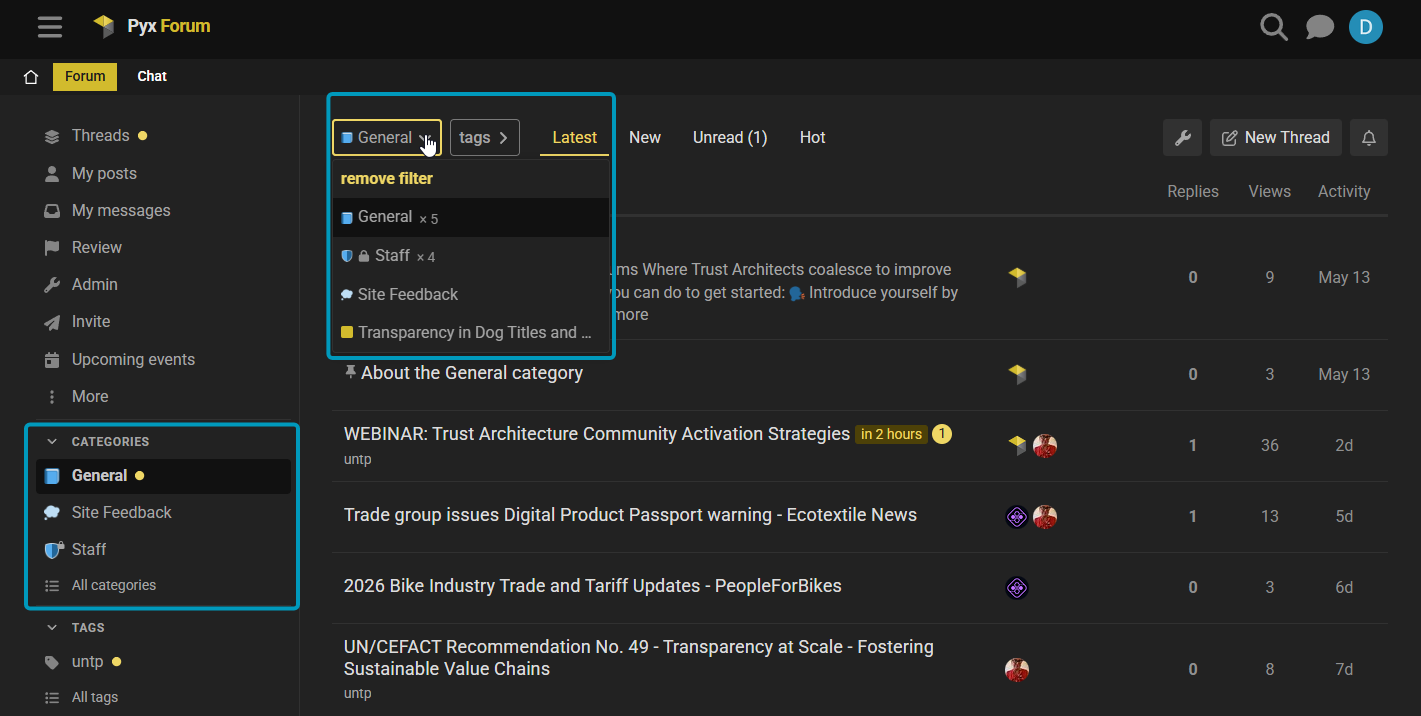
🔹 Categories
Categories are the broad areas the Forum is divided into — think of them as the rooms of the building. Open Categories in the top navigation to see them all, then click into one to read the threads inside it. A couple of categories you'll always find:
- General — anything that doesn't fit a more specific area; a fine place to introduce yourself.
- Site Feedback — questions and ideas about the Forum itself and how we can improve it.
You'll also see Initiative categories — one per Dashboard Initiative (more on that in How the Forum connects to the Dashboard below). The exact set of categories grows as the community does, so browse the live Categories page for the current list.
🔹 Threads
A thread is a single discussion inside a category — a question, an announcement, a proposal — with all of its replies kept together in one place. Each thread lives in exactly one category, which keeps conversations easy to follow and easy to search later. (Heads-up: this is what some other forums call a "topic" — on the Pyx Forum it's a thread.)
✍️ Step 3: Start a thread, reply, and format
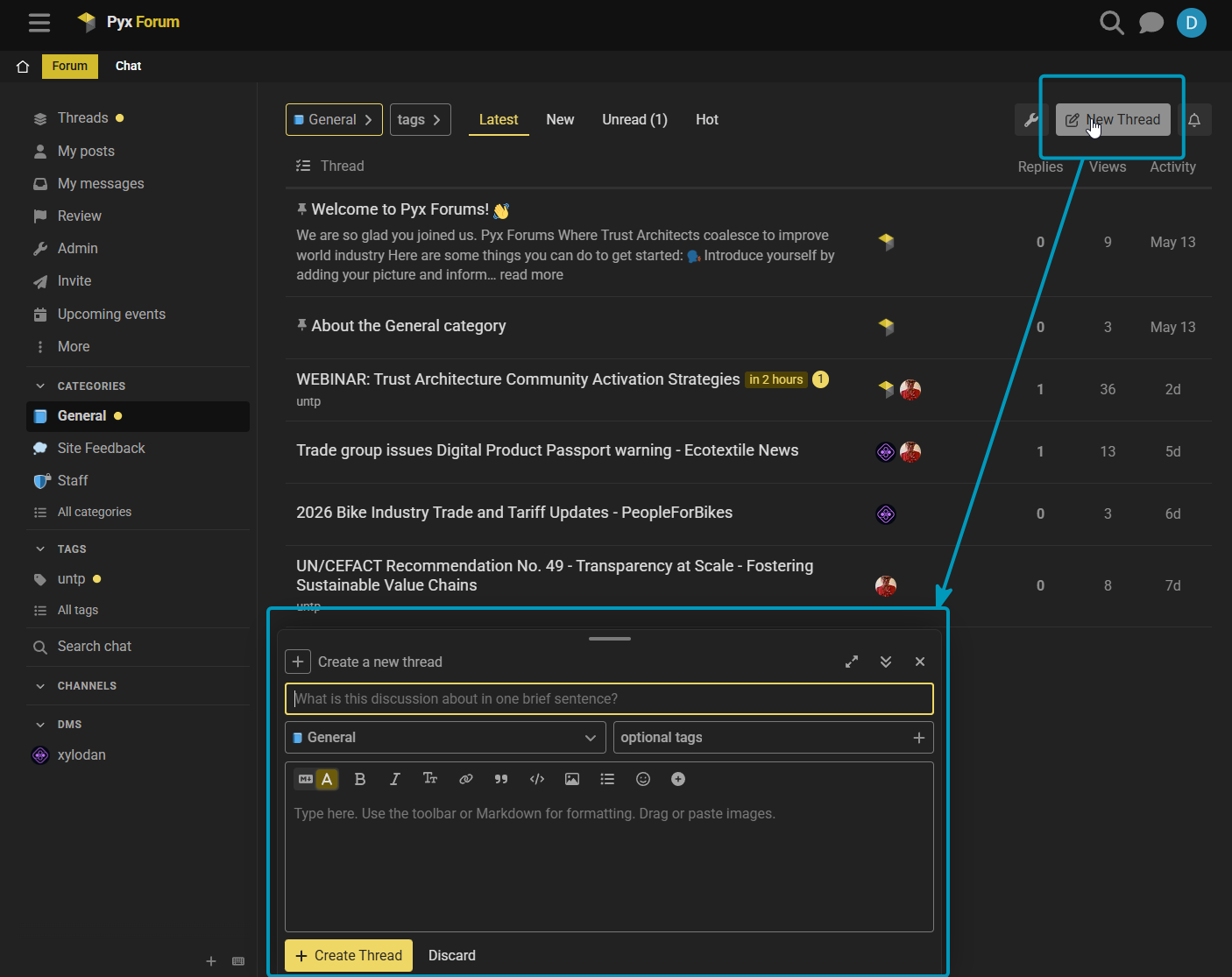
Start a thread
- Click + New Thread (top-right).
- Choose the category it belongs in.
- Write a clear title — this is what people see in lists and search.
- Write your post in the editor, then click Create Thread.
Reply
- Use the Reply button at the bottom of a thread to add to the conversation.
- To respond to one specific post, use the Reply arrow on that post — your reply is linked to it so context is clear.
- @mention someone (type
@and their name) to notify them directly. - Use Quote (select text → Quote) to reply to a specific passage.
Formatting
The editor accepts Markdown and has a toolbar if you'd rather click than type:
**bold**,*italics*, and`inline code`- Headings, bulleted and numbered lists, and block quotes (
>) - Links, and drag-and-drop or paste images and files straight into a post
- Fenced code blocks (triple backticks) for snippets
- Emoji 🎉 (type
:to search) and a live preview beside the editor
A small toolbar above the editor covers all of the above if you'd rather not remember the syntax.
🔗 How the Forum connects to the Dashboard
The Forum doesn't stand alone — it's wired into your Pyx Dashboard.
- Forum activity shows up in your Dashboard feed. New threads and discussions flow into your home feed on the Dashboard, labelled as coming from the Forum, so you see what's happening without having to check both places.
- Each Dashboard Initiative maps 1:1 to a forum category of the same name. When an Initiative needs a home for discussion, a matching forum category is created automatically. Discussions and events you start in an Initiative are posted into that category (as you — the Forum is the system of record), and in return, threads posted in that category flow back into the Initiative's activity on the Dashboard. So an Initiative's Dashboard page and its forum category are two views of the same conversation.
💡 You can start a forum thread straight from a Dashboard feed card with Start a discussion — see the Dashboard guide for the full story on Spaces, Initiatives, and the feed.
📅 Events
Community events live on the Forum too: an event is posted into its Initiative's forum category, and that's where RSVPs are recorded. You'll see upcoming events in the Upcoming events panel on your Dashboard and can RSVP right from there; the first time, you'll be asked to sign in to the Forum so the RSVP is recorded as you. Creating events is handled by an Initiative's chair/architect — see the Dashboard guide for how events and RSVPs work end to end.
💬 Direct messages
You can send a direct message to another member from their profile or from the ✉️ messages area — handy for a quick 1:1 that doesn't belong in a public thread.
Your forum DMs also appear in your Dashboard Messages inbox, so you can read and reply to them alongside your other Pyx messages without leaving the Dashboard. (The Dashboard shows your messages to you under your own account, and never stores them — see the Dashboard guide.)
🔔 Notifications & preferences
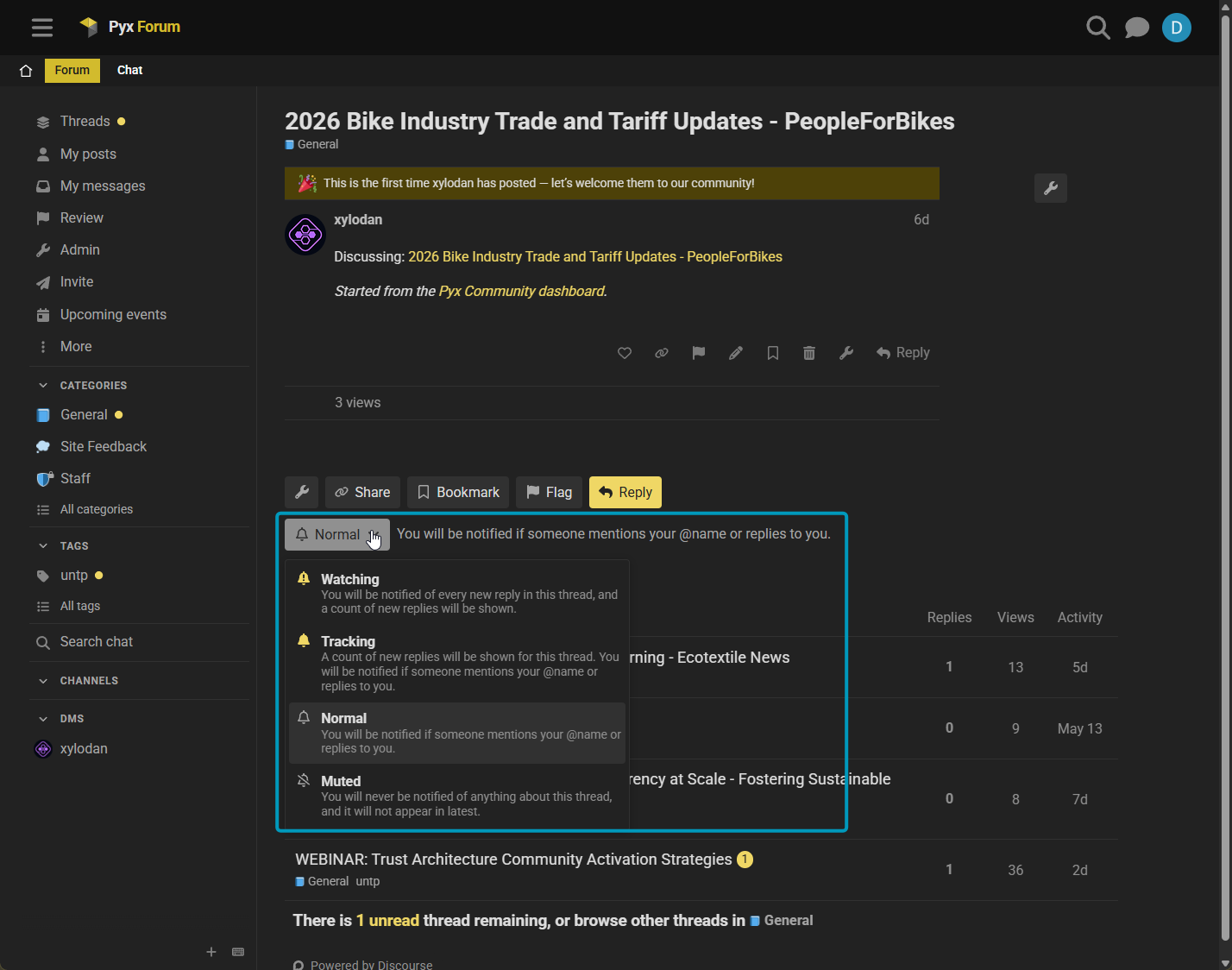
The Forum lets you decide exactly how closely you follow things, per category and per thread. At the bottom of any thread (or category) is a notification control with four levels:
- 🔔 Watching — notified of every new reply.
- Tracking — counts unread replies; notified when you're @mentioned or replied to.
- Normal (default) — notified only when you're @mentioned or replied to.
- Muted — keep it out of your lists and notifications entirely.
To tune the rest, click your avatar → the person icon → Preferences → Notifications (and Emails for digest/email settings). You can set a regular email digest of popular threads so you stay in the loop without checking in daily.
📱 Mobile access
The Forum works well on a phone with no app required — just open forum.community.pyx.io in your mobile browser and sign in with your Pyx account as usual.
For a more app-like experience you can:
- Add it to your home screen — in your mobile browser's menu choose Add to Home Screen; it opens full-screen like an app (it's a Progressive Web App).
- Use the Discourse app — install Discourse (the official app, sometimes
shown as Discourse Hub) from the App Store or Google Play, then add the site
https://forum.community.pyx.ioand sign in with your Pyx account.
Mobile push and email notifications follow the same preferences you set above.
🆘 Need help?
- Post in Site Feedback on the Forum, or
- Ask in the community chat, or
- Email site@pyx.io for direct assistance.
We're glad you're here — see you in the threads. 🧵
Need Interactive Support?
🚀 Join our community chat for real-time assistance with UNTP implementation questions!
💬 Chat with UNTP Experts - Get instant help from our community of developers and trust architects.