The Pyx Dashboard
The Pyx Dashboard is your front door to the Pyx community. It's the personalized home you start from: one place that pulls together what's happening across the blog, the forum, chat, and a curated set of trusted news sources — and then sends you straight into the right tool when you want to join in.
The Dashboard doesn't replace the forum or chat. It's the layer above them: a single feed of activity, a way to organize what you follow into Spaces, and quick deep-links into the conversations that matter to you.
The Dashboard lives at community.pyx.io. Sign in with your Pyx account — the same login works across the Dashboard, the Forum, and Chat.
Quick start
| You want to… | Where | What happens |
|---|---|---|
| Sign in | "Log in", top-right at community.pyx.io | Sign in with your Pyx account (single sign-on). |
| Set up your home | Onboarding (first sign-in) | Pick what describes you and the topics you care about — tailors your feed. |
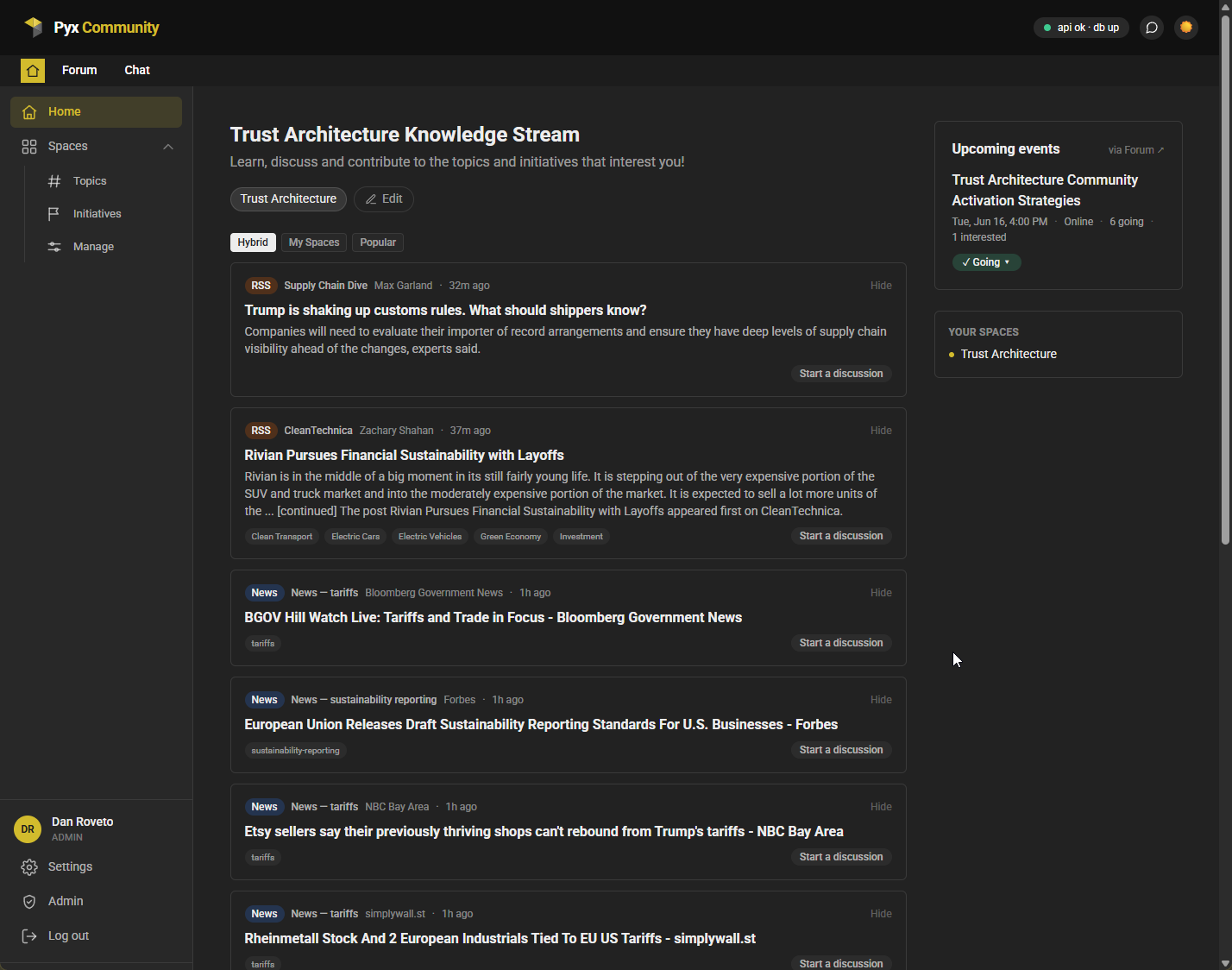
| Read what's new | Home feed | Aggregated activity from the blog, forum, chat, and curated sources. |
| Focus your feed | Feed modes + topic toggles | Switch between Hybrid, My Spaces, and Popular; mute topics you don't want right now. |
| Follow a subject | Spaces → Topics | Follow (or start) a Topic; it then feeds into your home. |
| Tidy your feed | "Hide" on any feed card | Hide a source you don't want; manage the list in Settings. |
| Collaborate on something | Spaces → Initiatives | Action-oriented Spaces with events and a dedicated forum category. |
| Check your DMs | Messages icon (top bar) | See and reply to your direct messages without leaving the Dashboard. |
🔑 Signing in
The Dashboard uses single sign-on with your Pyx account — the same identity you use for the Forum and Chat. There's no separate Dashboard username or password to create.
- Go to community.pyx.io.
- Click Log in (top-right).
- Sign in with your Pyx account. You'll land back on your Dashboard.
The first time you sign in, you'll go through a short setup (see Getting set up below). After that, the Dashboard remembers you.
ℹ️ New to Pyx? Your Pyx account is the single login across the Dashboard, Forum, and Chat — create one the first time you sign in.
📰 Your feed
The heart of the Dashboard is the feed — a single, ranked stream of recent activity drawn from across the community:
- Blog posts (from pulse.pyx.io)
- Forum topics and discussions (forum.community.pyx.io)
- Chat activity (chat.pyx.io)
- Curated news sources — a hand-vetted set of feeds relevant to trust architecture, supply-chain transparency, digital product passports, and related areas, maintained by the Pyx team.
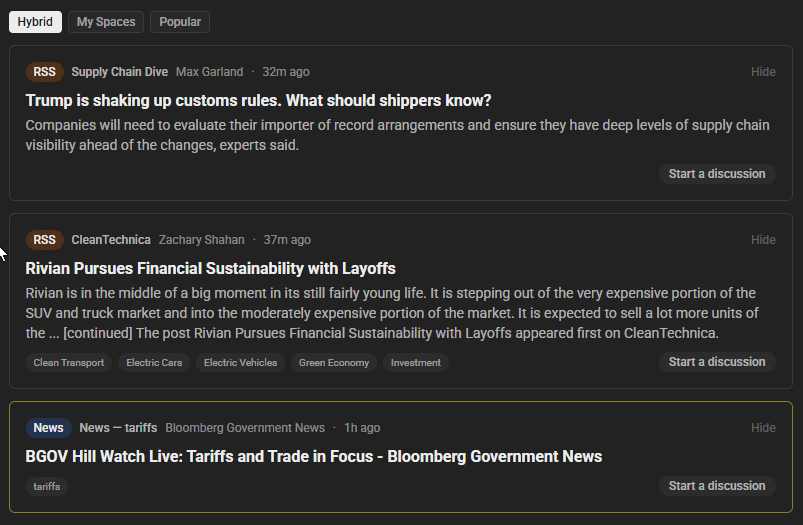
Every card shows where it came from: a coloured source label (News, Blog, RSS, Forum, Chat, or Pinned) plus the specific source name — for example "W3C – Blog". Click a card to open the original item in a new tab.
Choosing how your feed is composed
Above the feed are three small mode buttons:
- Hybrid (default) — your followed topics and initiatives ranked higher, with the community's most popular items still mixed in.
- My Spaces — only the topics and initiatives you follow.
- Popular — the most popular items across the whole community, with no follow-based boost.
Just below your followed topics, each appears as a toggle. They're all on by default — click one to mute its items from the feed for now, click again to bring it back. (Want to change which topics you follow? Use Edit, which takes you to your Spaces.)
Hiding a source you don't want
Not every source is for everyone. On any feed card, click Hide to remove that source from your feed — it disappears immediately and stays hidden everywhere (home and inside Spaces). You can review and un-hide sources anytime under Settings → Hidden sources.
To keep any single source from flooding your home feed, the Dashboard also caps how many items each source contributes at once — so the best from each source still shows, without one busy source crowding everything else out.
🗂️ Spaces: Topics and Initiatives
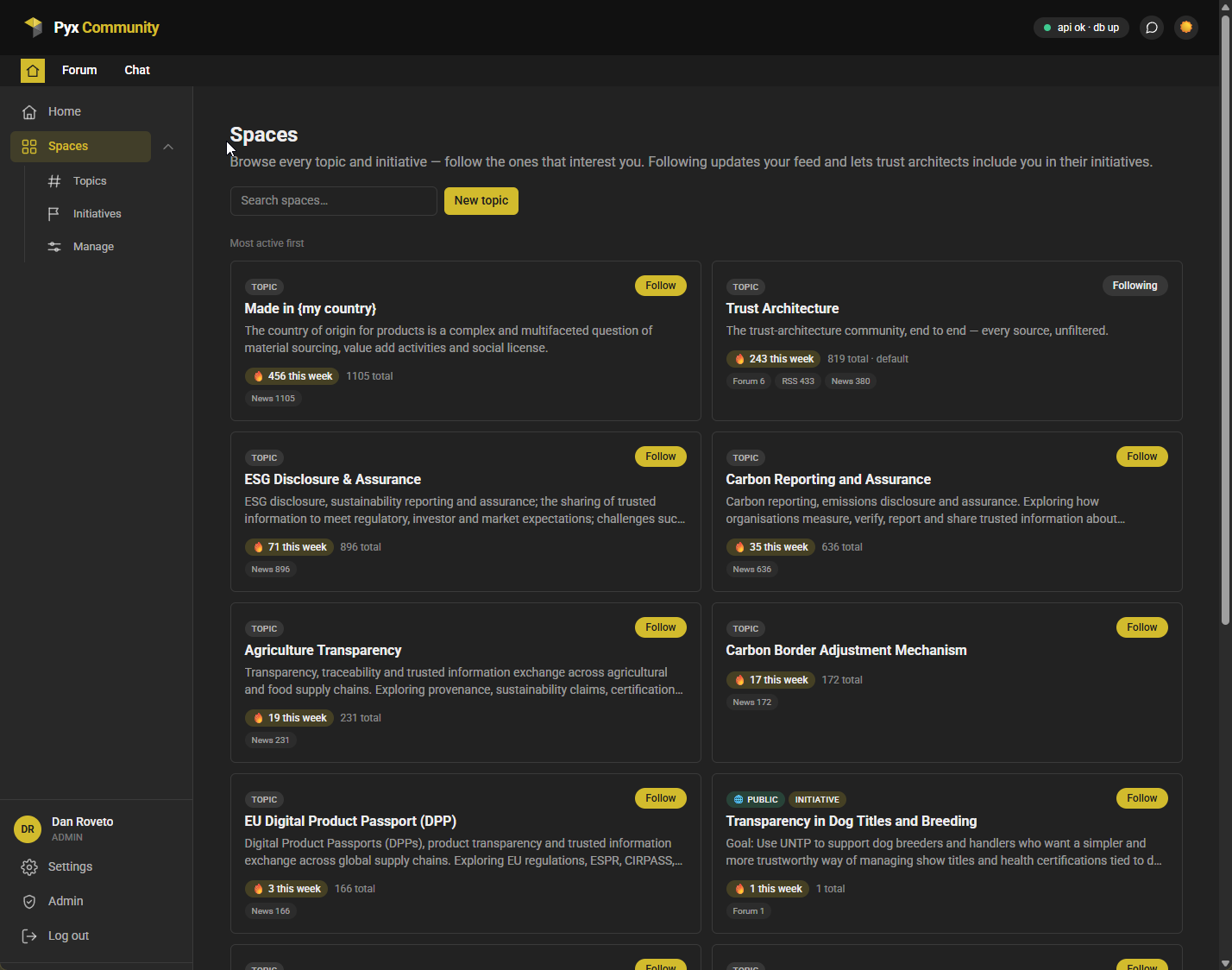
Spaces are how you organize the community around the subjects you care about. A Space gathers relevant activity into one place and lets you follow it. There are two kinds.
Topics — open, anyone can start one
A Topic is a lightweight, non-committal lens on a subject — an industry, technology, initiative, or challenge you want to keep an eye on. Anyone signed in can start a Topic, and the Dashboard immediately begins tracking news for it. Others can follow your Topic too, which makes the feed richer for everyone.
Everyone starts out following the default Trust Architecture topic.
Roles on a Topic (the people who tend it):
- Spokesperson — the person who started it; tends the Topic and can hand the role to someone else.
- Supporter — helps curate the Topic's sources and content.
- Follower — anyone following along; following gives the Topic a boost in your feed.
Initiatives — action-oriented, and gated
An Initiative is for getting something done together — a pilot, a working group, a project. Initiatives have more structure than Topics: a dedicated forum category, events, and an invite list.
Because they're action-oriented, starting an Initiative unlocks once you've engaged with the community — following or starting any Topic is enough. Until then, you'll see a friendly prompt rather than a locked door. (You can always follow and take part in Initiatives; the gate is only on founding one.)
Roles on an Initiative:
- Chair — runs the Initiative: manages the roster, sends invites, and can hand the chair to someone else.
- Architect — helps manage the Initiative's content, sources, and events.
- Follower — takes part and gets the Initiative boosted in their feed.
💡 Topics and Initiatives work the same way under the hood — an Initiative is just a Topic that's grown into something more deliberate. The role names differ to match the tone (Spokesperson/Supporter for Topics, Chair/Architect for Initiatives), but following, feeds, and sources behave the same.
Following a Space
On any Space (or in the Spaces directory), click Follow. Following:
- pulls that Space's activity into your home feed (and into the My Spaces mode), and
- lets the people running an Initiative include you.
Leaving is always your choice — just unfollow. No one can remove you from a Space; the most a Chair can do is step someone down from Architect back to Follower.
Running a Space you started or help tend
If you're a Topic's Spokesperson/Supporter or an Initiative's Chair/Architect, each Space gets a settings panel (the gear) where you can:
- edit the name, description, and tags;
- add sources specific to that Space — a news phrase to watch (e.g. "battery passport"), or, under Advanced, a blog RSS feed, a forum category, or a chat link;
- (Initiatives) set visibility, manage invites, link related topics, and add events.
ℹ️ The community's curated news sources already flow into everyone's home feed automatically — you don't need to add those. A Space's own sources are for what's specific to that Space.
🔗 How Initiatives connect to the Forum
Each Initiative is paired one-to-one with a category on the Forum of the same name, created automatically the first time it's needed. This keeps the Dashboard and the Forum in sync:
- Discussions and events you start in the context of an Initiative are posted into that Initiative's forum category (as you — the Forum is the system of record).
- In return, topics posted in that forum category flow back into the Initiative's activity feed on the Dashboard.
So an Initiative's Dashboard page and its forum category are two views of the same conversation — start it in either place, and it shows up in both.
Events & RSVPs
Initiatives can host events. A Chair or Architect adds an event from the Initiative's page (with a date, optional meeting link, and details); it's posted to the Initiative's forum category, where RSVPs live.
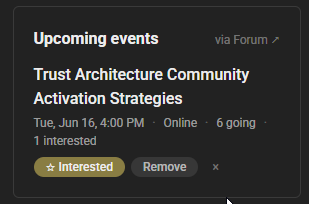
Upcoming events show in the Upcoming events panel on your home Dashboard, and you can RSVP (Going / Interested) right from there. RSVPs are recorded on the Forum, so you'll need a forum account the first time.
Starting a discussion from a feed item
See something in your feed worth talking about? Use Start a discussion on the card to open a forum thread about it — posted as you, with a link back to the item added automatically. (You'll need a forum account; if a thread already exists, the card links you straight to it with Join the discussion.)
💬 Messages
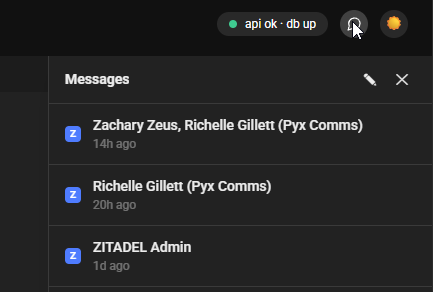
The Dashboard includes a Messages inbox so you can read and reply to your direct messages from across Pyx without leaving the page. Open it from the message icon in the top bar (it also shows an unread badge).
- Forum (Discourse) DMs — the first time, click Connect forum account and approve access on the Forum using your own account. After that, your forum DMs appear in the Dashboard inbox; you can read, reply, and start over to the Forum anytime. Disconnect whenever you like from Settings → Connected accounts.
- Chat (Zulip) DMs — your chat DMs join the same inbox automatically using your Pyx login (nothing to connect).
A few important guarantees:
- The Dashboard is a live viewport, not a message store — Pyx never stores your messages. Everything is fetched live and every conversation deep-links back to the source tool.
- It's all under your own account — connecting your forum account just lets the Dashboard show your messages to you; you can revoke access at any time (from the Dashboard, or in your Forum preferences under Security → Apps).
The Dashboard does not add a new messaging system — the forum and chat remain the system of record for your conversations. It just brings them into one inbox.
🙋 Getting set up: personas & topics
The first time you sign in, a short setup tailors your Dashboard:
- What best describes you? Pick all that apply — for example Consultant, Business, Government / Regulator, Industry Association, Conformity Assessment Body, or Software Vendor. (You can be more than one.)
- Your topics. We pre-select a few topics suggested for the personas you chose; add or remove any. The default Trust Architecture topic is always included.
- Organization (optional) — where you work.
- Communications — opt in (only if you want) to the Pyx newsletter, and to being set up on the Forum and Chat. Nothing is sent unless you tick it.
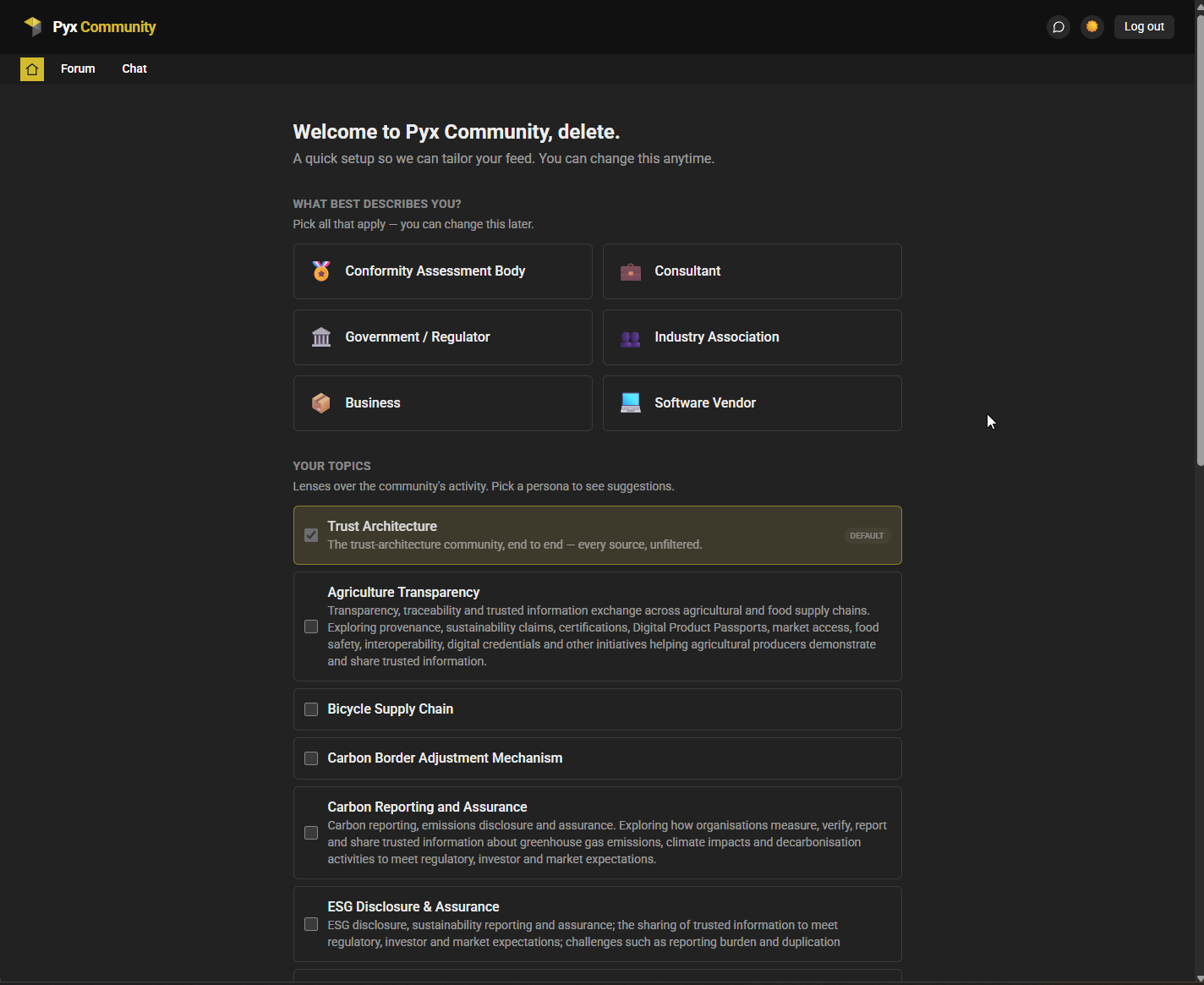
Your persona is about personalization, not permissions — it tunes how your feed is ranked, nothing more. It never changes what you're allowed to do. You can change your persona (and everything else) anytime under Settings.
Settings
Settings shows your account (name, email, organization), your persona editor, your hidden sources, and your connected accounts. More preferences are on the way.
🔮 Coming soon
- Live credential stream (UNTP). A stream of verifiable credentials from trust architects' Identity Resolvers, surfaced as they're issued. This is on the roadmap and not yet live — it's being wired up against a real Identity Resolver.
(We'll add new capabilities to this page as they ship.)
🧭 How the Dashboard relates to Chat, Forum, and the Blog
The Dashboard is the front door — it surfaces and links, rather than replacing the tools where the actual work happens:
| Tool | What it's for | The Dashboard's role |
|---|---|---|
| Forum (Discourse) | Long-form discussion, Q&A, events | Surfaces forum activity in your feed; Initiatives map to forum categories; you can start discussions, RSVP to events, and read forum DMs from the Dashboard. |
| Chat (Zulip) | Real-time conversation | Surfaces chat activity in your feed; chat DMs can join the Dashboard inbox. |
| Blog (Pulse) | News and articles from Pyx | Blog posts flow into your feed. |
Think of it this way: the Dashboard is where you find out what's happening and decide where to jump in; the Forum, Chat, and Blog are where you do the thing. One sign-in ties them all together.
See also
- Pyx Chat (Zulip) — getting started with community chat
- Pyx Forum — long-form discussion and Q&A
- Pyx Pulse — the Pyx community blog
Need Interactive Support?
🚀 Join our community chat for real-time assistance with UNTP implementation questions!
💬 Chat with UNTP Experts - Get instant help from our community of developers and trust architects.